
Access Trading Account Information
No need to login to Brokerage Account site for normal day-to-day activity.
Each account includes a Summary page showing the Account Balance, Margin Balance, Stock, Option & Day Trading Buying Power and tracks the current trading day’s activity.
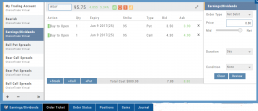
Besides the Order Ticket, the Order Status, Current Positions & Transaction History are all available. You can view previous order history in the Order Status tab by clicking on the drop-down menu on the upper-right corner of that screen.
You can access any account and switch accounts with a single click. You can even change the account from the order ticket.
The newest feature, Journal provides the means of organizing, noting, analyzing & reconciling trades.

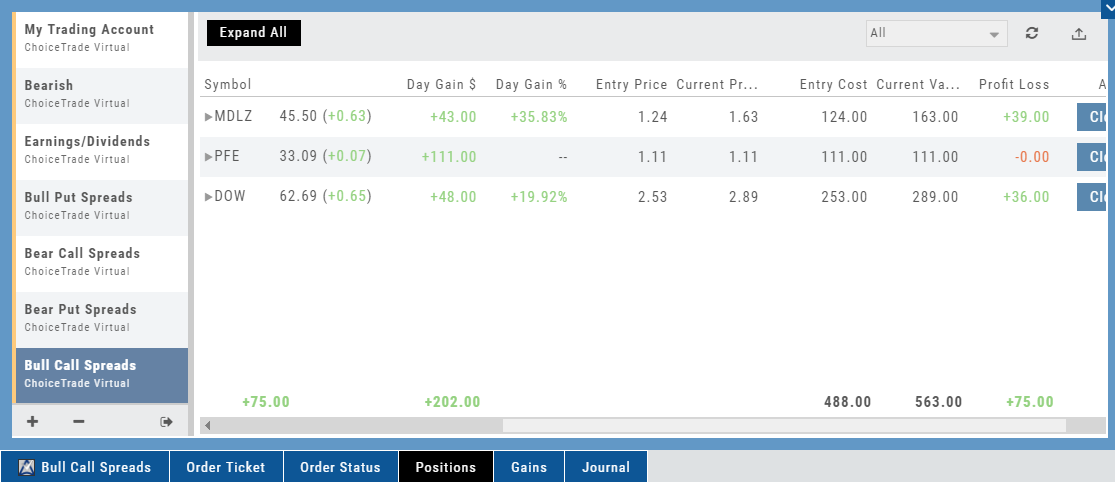
Expand Trade Detail - Positions Tab
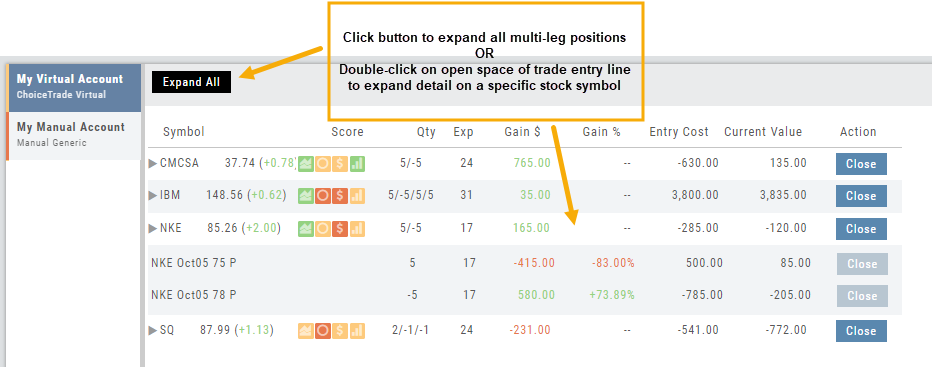
There are 3 ways to expand multi-leg trades in the Positions Tab.
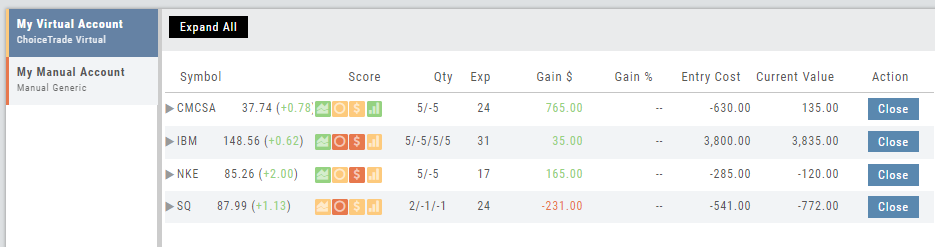
Smart Icon – Click on the  icon to the left of the stock symbol, select ‘Expand/Collapse’. Repeat to close.
Expand All – Click the button above the trade entries if you wish to expand all multi-leg trades. Once clicked, the button will change to Collapse All.
Double-Click – if you want to expand one trade or specific trades, simply ‘double-click’ on an open space of the trade entry line. Repeat to close.
Trade Management
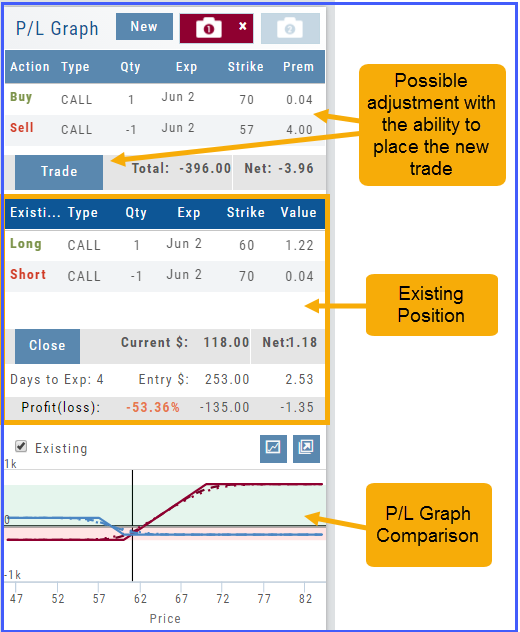
This platform makes it easy to manage and adjust trades when needed. The Snapshot feature and the P/L graph enables you to visually assess adjustments.
Once the existing trade is showing on the options page, take a ‘snapshot’. Enter the adjustment, then take another ‘snapshot’.
To submit the adjustment to the Order Ticket of your brokerage account, click “Trade”. The smart ticket system will even handle the trade adjustment automatically by entering the appropriate buy/sell, open/close combination. 
Reconcile Trade Notice
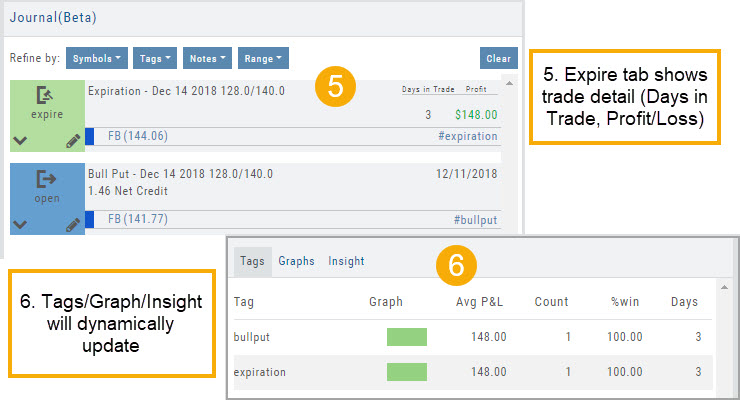
The Tags including the P/L Summary, Graph and new Insight tabs rely on updated Journal entries which includes reconciled trades.
The following notice appears in the Journal when trades needs to be reconciled:

All trades in the trading account(s) selected will display with the option to change back to Regular View:
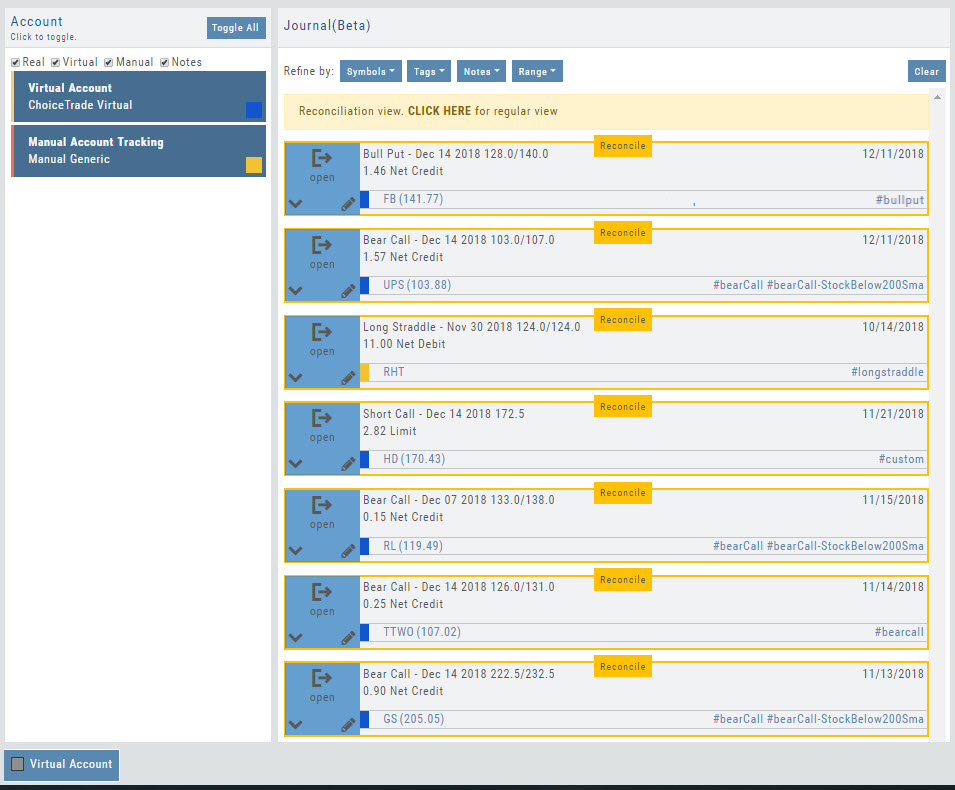
Individual trades are reconciled by clicking on the “Reconcile” tab outlining the Journal Entry.
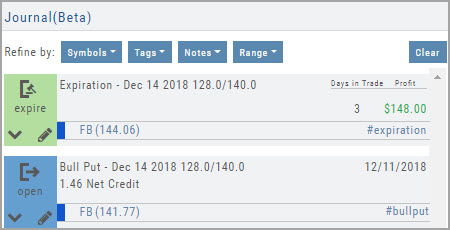
The Journal Tab will update showing the trade had a profit/loss or adjustment in the underlying.
Updating Journal Entries
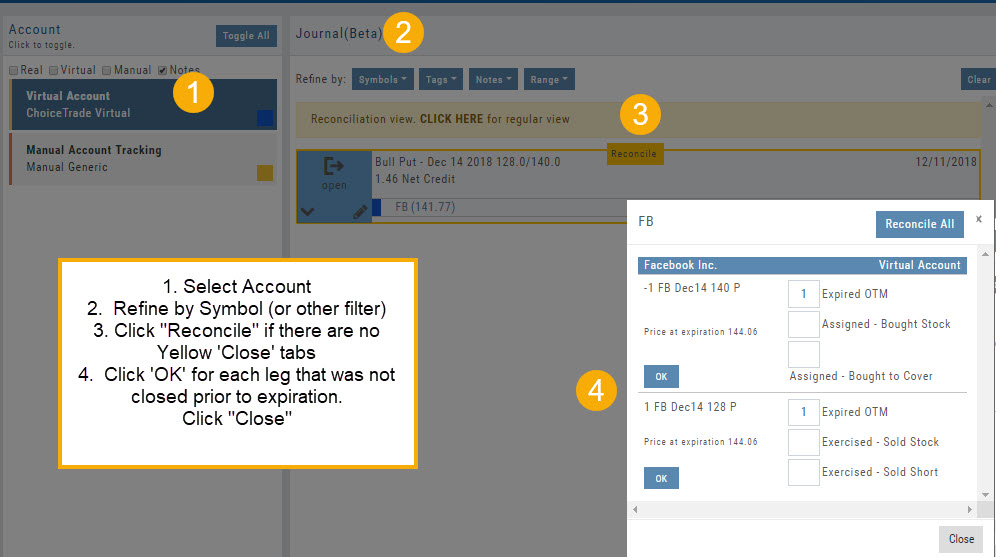
Logging into your account will update Journal entries for up to the last two months. However, trades that expired will need to be Reconciled. If the system is unable to match trades, a Yellow ‘Close’ tab will result, requiring manual action to close.
Follow the steps as shown below to reconcile your trades.
Note: Step 2 is not required, however, if you are just learning to use the Journal and it’s features, sorting by Symbol, especially if you have multiple trades, simplifies the process.
Tag Results-Table Summary Totals
Located below the Analytics Tab in the Journal, the Tag Result Table Summary displays trade performance by Date Range, Total P/L, Average P/L, Number of Trades (Count), % Profitable and Average Number of Days in Trades.

This data is dynamically updated by available filters including:
Type of account(s) (Manual, Virtual &/or Live)
Specific trading account(s)
Date Range
Stock symbol
Tags

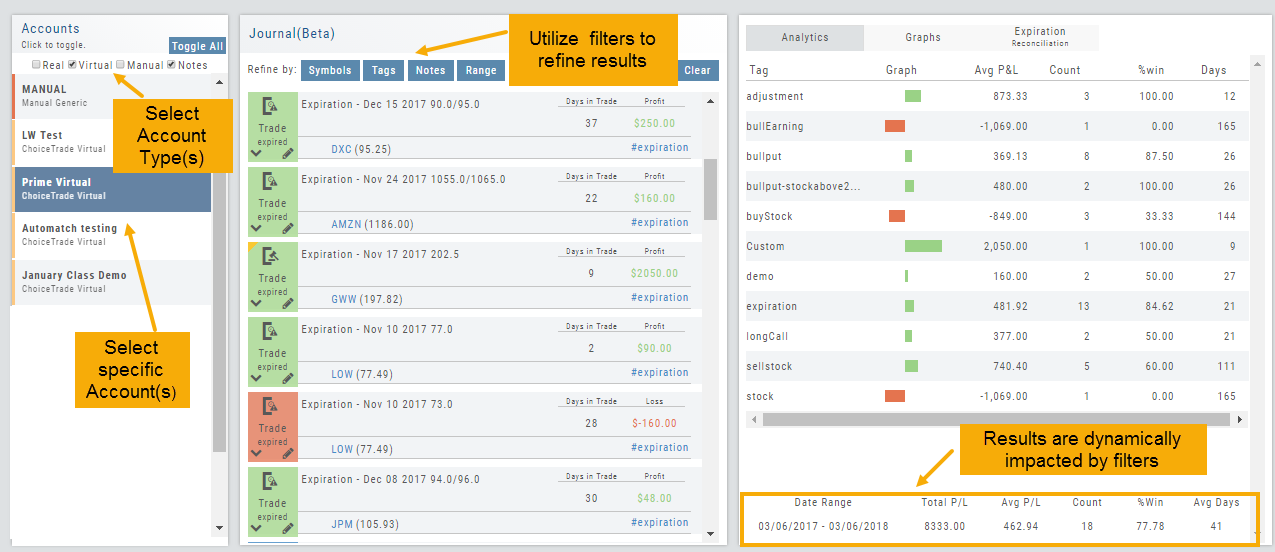
Not only does this table provide valuable information, you can use it to compare strategies, track improvement in your overall trading, etc.
Insight Tab in Journal
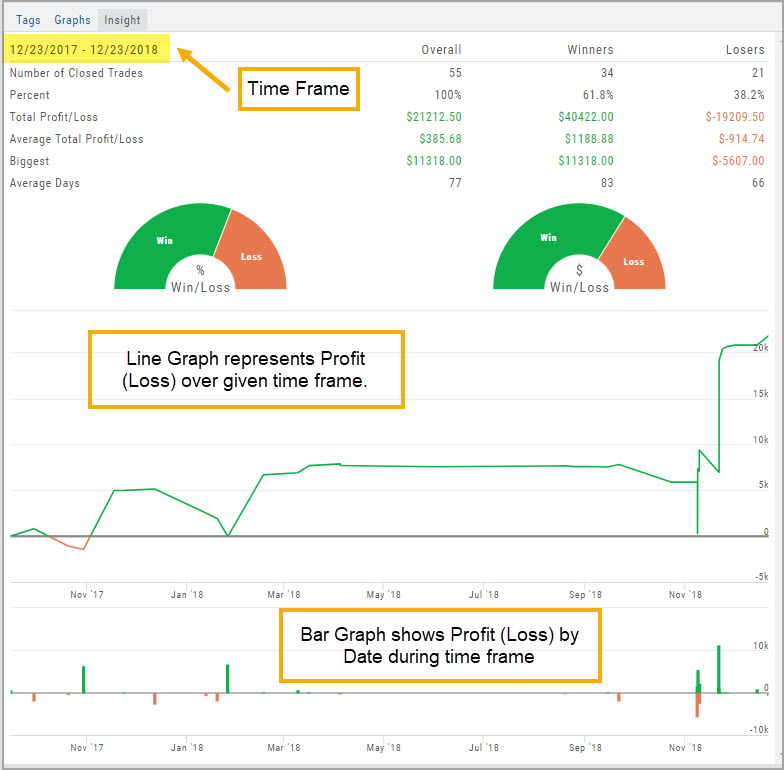
The Insight Tab, along with Tags and Graphs update dynamically with the account(s), symbol(s), tag(s) and/or date range selected.
Insight breaks down Overall Performance by Winning and Losing trades in addition to:
- Number of closed trades
- Percent (Winning/Losing Trades)
- Total $ Profit/Loss
- Average Total Profit/Loss
- Biggest (Winning/Losing Trade)
- Average Days in Trade
P/L & Duration/Timeline Graphs
Journal Trade Graphs
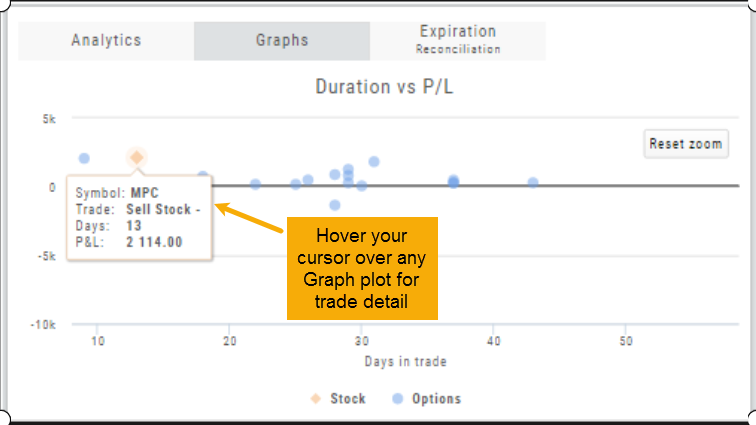
This tab offers two views of your Closed, Matched or Reconciled trades: P/L by Trade Duration and P/L by Timeline. The views update dynamically by Account, Symbols, Date Range and #tags.
The Timeline Graph.
Click/Drag your cursor to adjust/enlarge the orientation view.
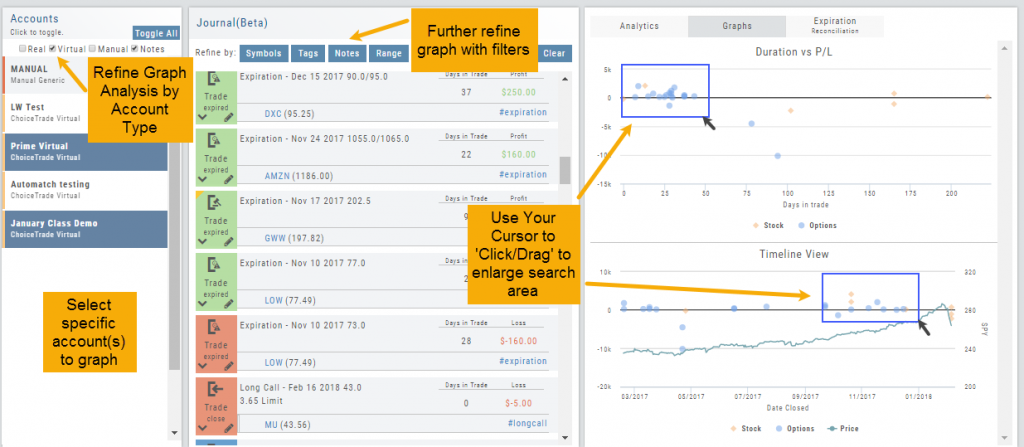
Hover your cursor over each graph plot for trade detail. Circles = Option Trades, Diamonds = Stock Trades. The Duration View shows P/L and # of Days in the Trade
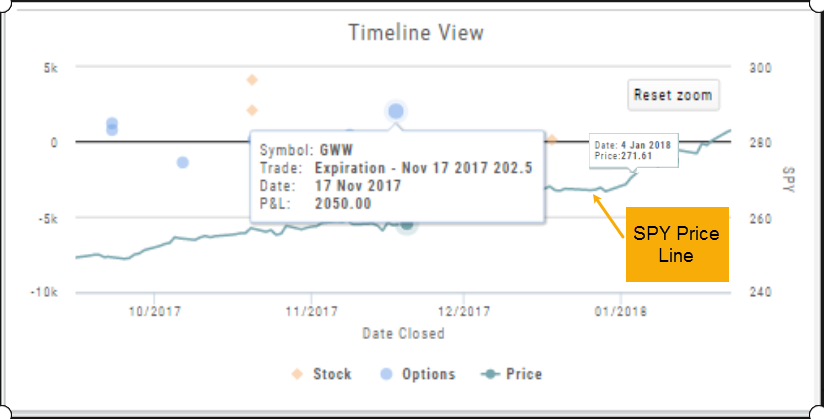
Timeline View displays P/L on Date Closed or Expiration
SPY Price is displayed on the Timeline View. Slide your cursor along this graph line to show end-of-day price for that date.
Trade from the Options Tab
Trading from the Options Table is easy!
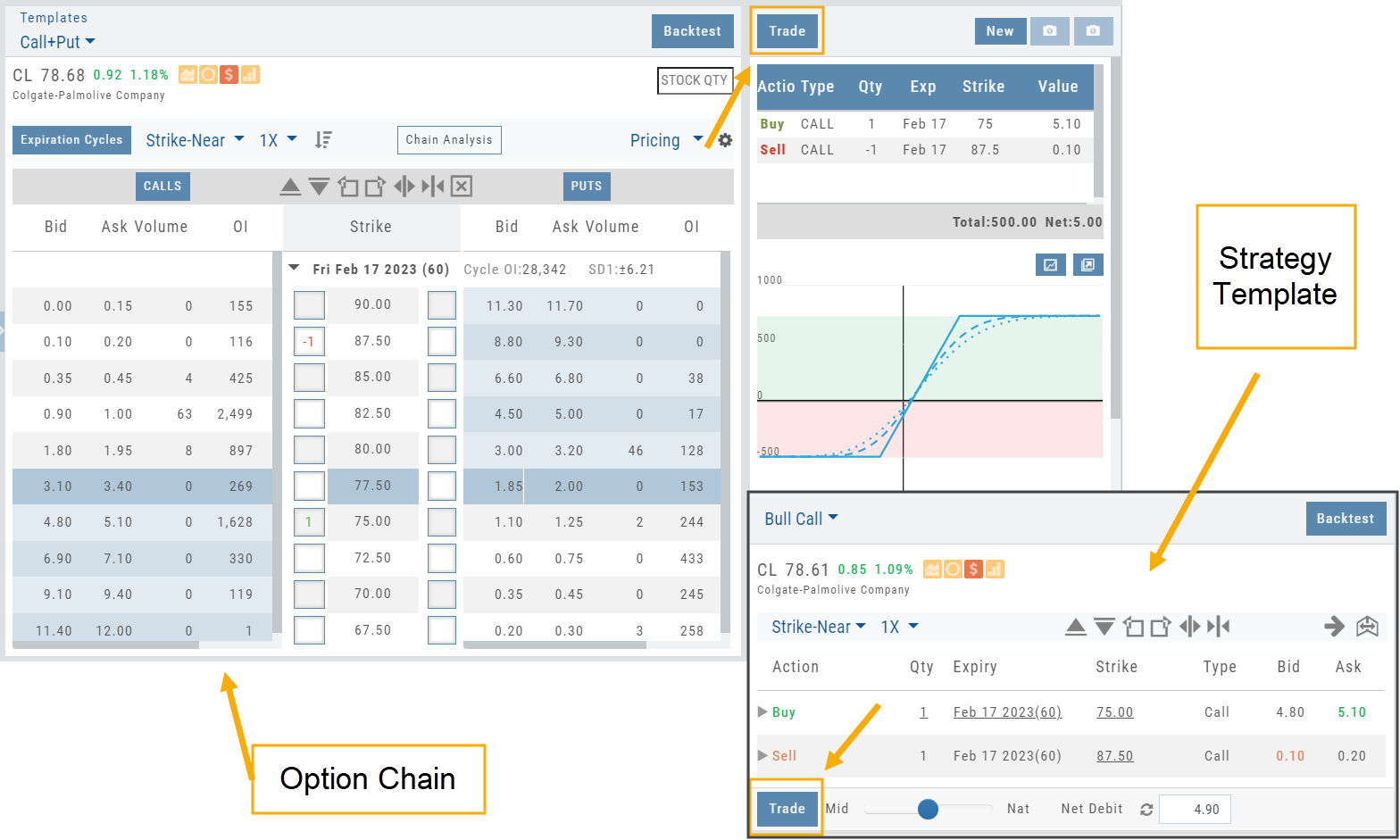
When a position is set up on the Option Chain or from one of the Strategy Templates, simply click the “Trade” button.
The Position will be sent to the Order Ticket where you can further edit:
- Adjust Price between “Mid” and “Nat”
- Change Duration: Day or Good Til Cancelled
- Change Order Type: Limit, Market, etc.
- Click “Review” to confirm Order Details and Account are correct
- Then “Submit” to send to brokerage.
Trading from the Option Template
From Template to trade is easy. 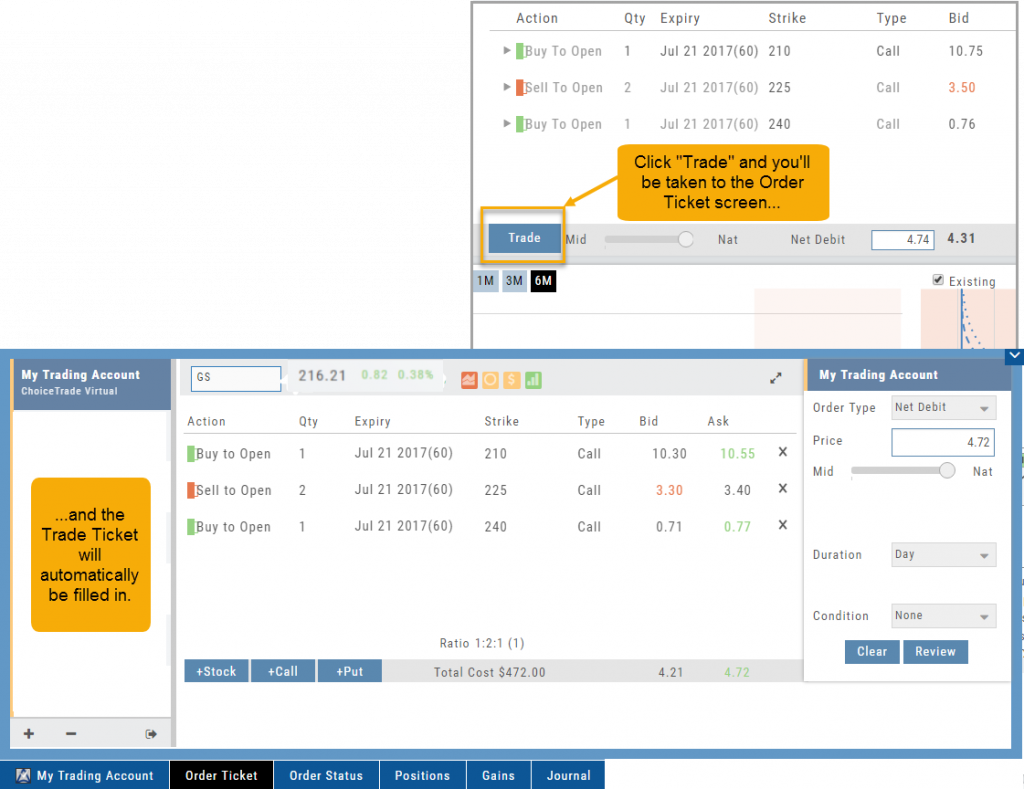
Simply click the “Trade” button on the Option Template and the Order Ticket will be filled in for you. This not only saves time, but eliminates order entry errors.
You can connect directly to select brokerage firms right from the platform and execute the trade.