
Bracket Order Adjustment
Adjust Limit and/or Stop Orders from the Chart
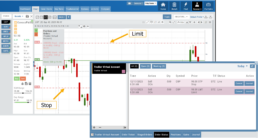
- Click on the Limit (or Stop) Order Dashed Line
- The Modify Order Price dialog box will appear
- Either move the dashed line to the new position, this will temporarily show up as a solid line. OR enter the new price in the dialog box.
- Click Modify
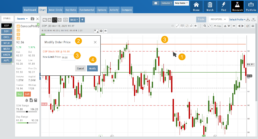
Once modified, the Limit order becomes a dashed line at the updated price.

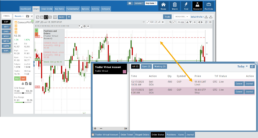
26-01 Release Notes: Bracket Order Adjustment, Journal Reports, Show Confirmation
Adjust Limit and/or Stop Orders from the Chart
- Click on the Limit (or Stop) Order Dashed Line
- The Modify Order Price dialog box will appear
- Either move the dashed line to the new position, this will temporarily show up as a solid line. OR enter the new price in the dialog box.
- Click Modify
Once modified, the Limit order becomes a dashed line at the updated price.
Journal Reports
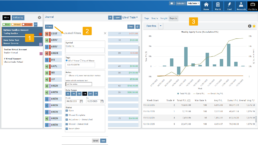
Journal Reports transform your trading data into visual insights that highlight performance trends, behaviors, and outcomes at a glance. With intuitive charts and summaries, you can easily evaluate results, refine strategies, and build more consistent trading habits.
Show Order Status (Go to Order Ticket)
When trading from the Chart (OCO orders), you can elect to Show Confirmation – or not.
Toggling “On” will take you to the Order Ticket to review and submit your Order to the supporting brokerage.
The Order Ticket tab allows you to further adjust and even Stage the Order.
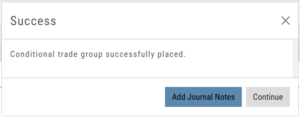
Once reviewed and submitted, you’ll get a confirmation the order was submitted, as shown here:
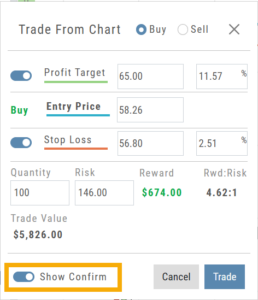
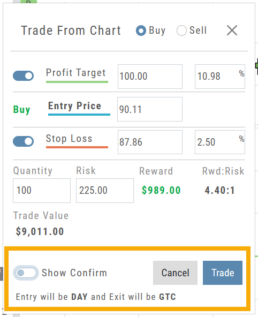
Toggling “Show Confirm” to Off, will bypass the Order Ticket window and convert the “Trade from the Charts” action to an Order Ticket itself.
Notice: The Entry is a Day Order, the Exit is a GTC order
Clicking “Submit” will send the order directly to the supporting brokerage.
Since the Order Ticket is bypassed, additional adjustments or Staging is not permitted when “Show Confirm” is in the “off” position.
Once submitted, as with “Show Confirm” activated, you’ll see this notice:
Conditional Orders (OCO)
Conditional Orders Available with Tradier Brokerage
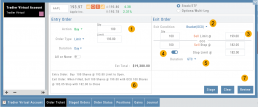
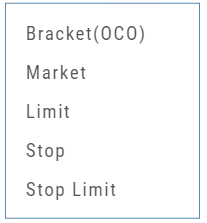 One-Cancels-the-Other (OCO) orders allow two orders to be placed at once, combining a Limit Order and a Stop or Stop/Limit Order. If/when one of the orders gets triggered and is executed, the other order is immediately canceled.
Such orders offer ways to take profits off the table while limiting exposure to losses.
-
- Opening Order OR the existing Position to Close
- Select “Bracket (OCO)”
- If the trade is favorable, the Limit Price will trigger to close and secure profit.
- If the trade is unfavorable, this Stop (or Stop Limit) Order can limit your loss
- Duration: “Day” or “Good Til Canceled”
- Summary of the Bracket-OCO Order
- Review for accuracy, then Submit on the next screen