
Platform Features Release: Sandbox Trading Account, Order Status Filter & more
Announcing the latest Release of feature and functionality additions and enhancements to the trading platform to assist the investment/trading decision process.
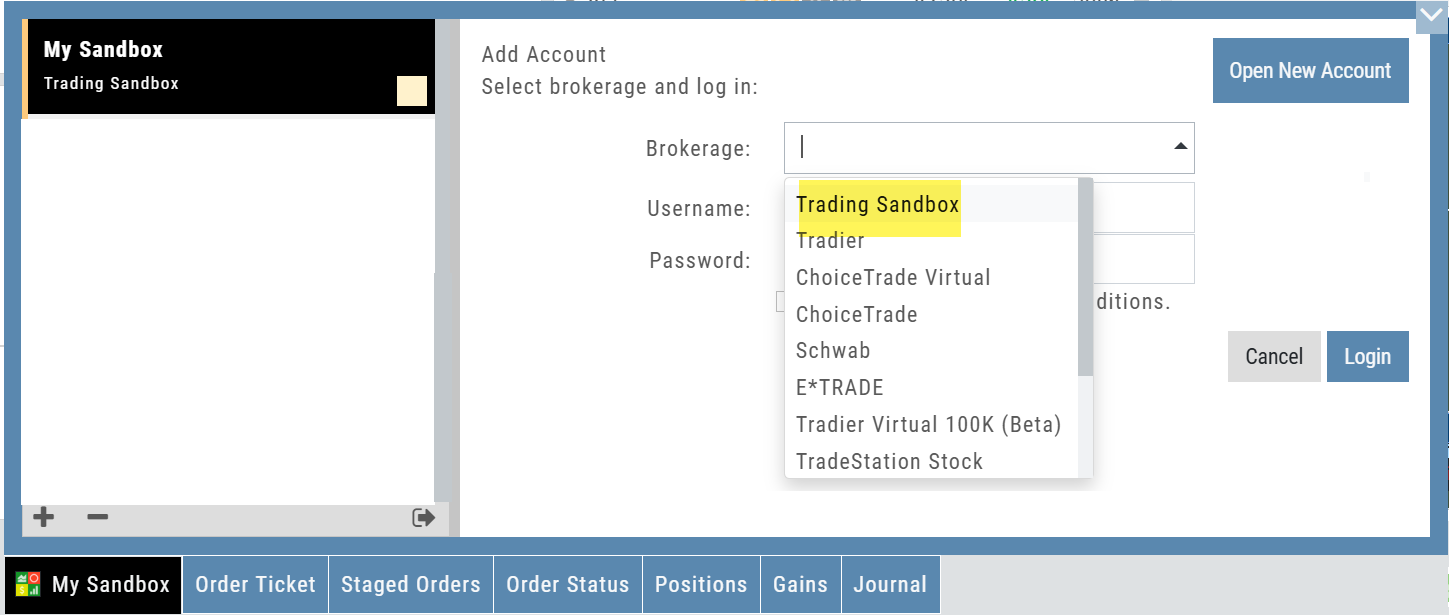
Trading Sandbox Virtual Account
Announcing a new Virtual Account with fast execution, accurate tracking, and reliability you can depend on.
Unlike traditional broker-provided virtual accounts, the Sandbox is not bound by brokerage margin rules or limitations, giving you more freedom to practice and test strategies.
The Sandbox uses delayed market data. In addition to fast, reliable trade execution and accurate trade capture, it also handles options correctly, supports Conditional Orders for stocks, full Journal Support, and more!
Order Status Filter Buttons
The Order Status Tab filter buttons make it easy to locate previous orders

- All – Everything in the time period is shown on the tab (Today, 1 Week, 1 Month, etc.).
- Open- Orders that have not yet executed as an active Trade/Position – includes Waiting Conditional orders.
- Working – Bracket orders where the underlying stock order is an active position (Stop/Limit orders). Excludes Waiting Conditional orders.
- Filled – Executed orders whether to open/modify/close
- Canceled – Includes both manually canceled as well as day orders that did not get filled prior to the end of the Market Day
OCO Journal Tagging
OCO Orders are automatically tagged in the Journal.
Once the Stock Order is Executed (it is an active Position), the Limit and Stop orders are Live (active Orders for the duration selected: Day or GTC.)
If/when the stock hits the Limit price, that order will execute, and the Stop order will be canceled. The Journal tab will be green and display a Gain/Profit.
-OR-
If/when the stock hits the Stop price, that order will execute and the Limit order will be canceled. The Journal tab will be red and display a Loss.
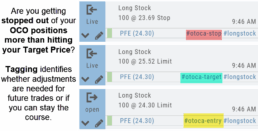
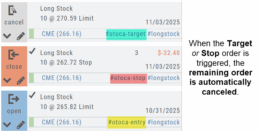
**Note: Past Conditional trades will be tagged as “otoca-entry”, “otoca-target” and “otoca-stop”.
Delayed Streaming Quotes
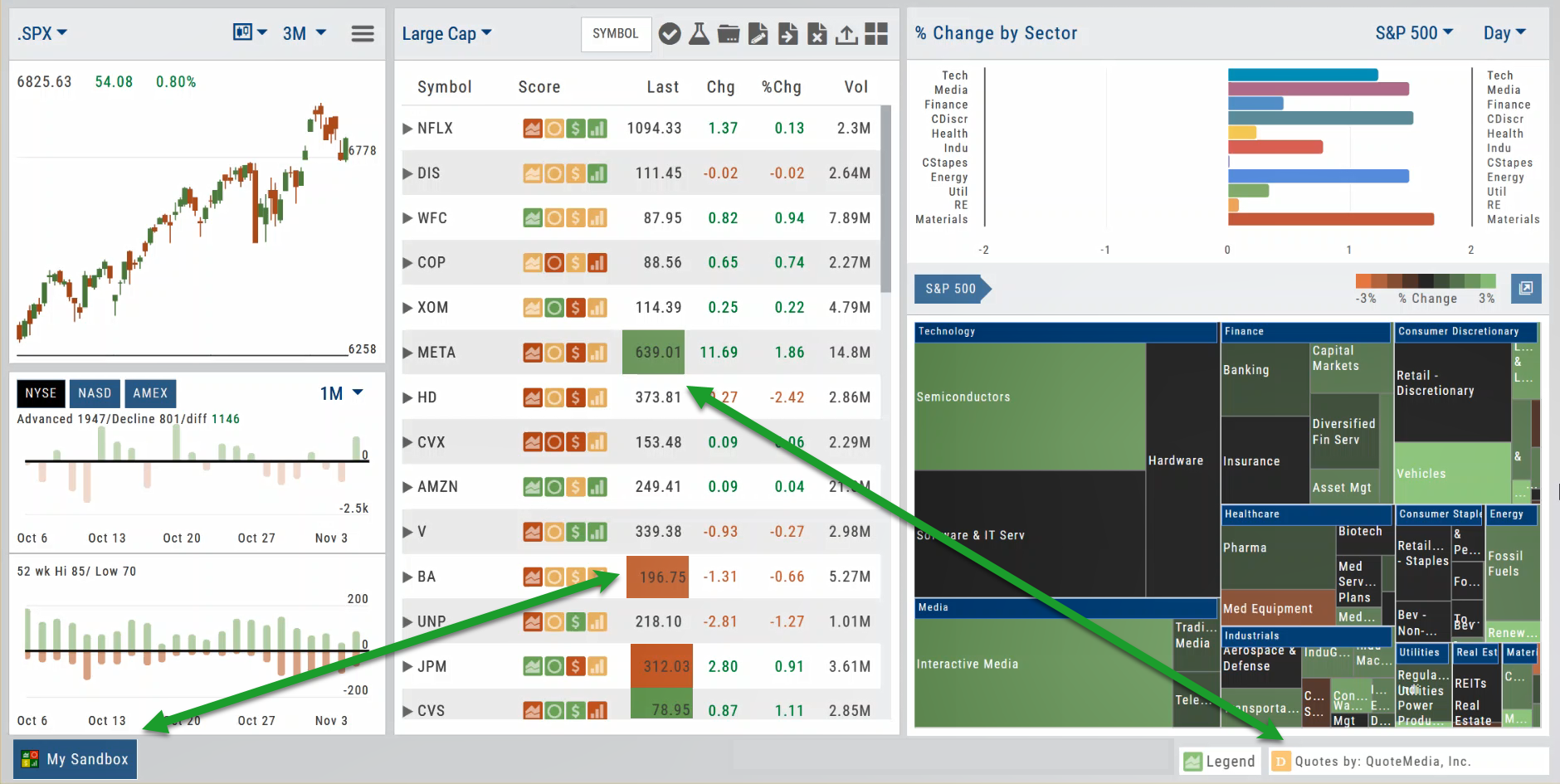
Delayed Streaming Quotes will appear when you have a Virtual or Manual Account activated.
Click on the account tab so that it appears on the bottom left corner of your screen.
Extend Fibonacci Retracements on Charts
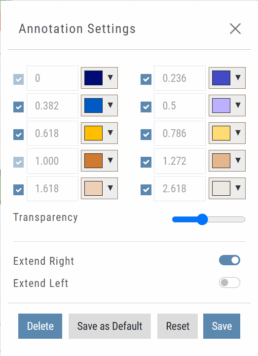
Fibonacci retracements can be extended right and/or left on the chart.
Click an existing Fibonacci annotation, then use the toggle switches to adjust it.
Don’t forget to “Save”
Note: Extend Right/Left can be edited/saved individually, not Set As Default.
Chart crosshairs
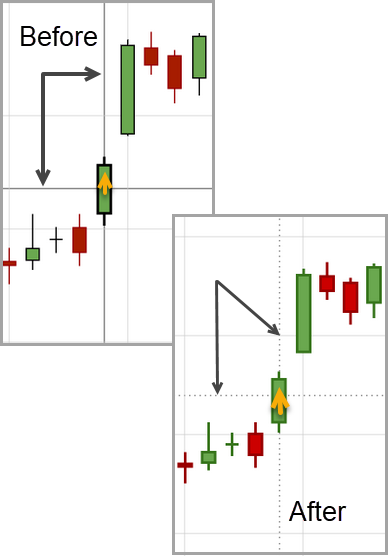
The cursor crosshairs on the chart have been adjusted so they no longer obscure the candlestick wicks
Other Additions
- Set “GTC” as default duration for Exit Order on Trade Ticket
- Modify TTM Squeeze formula to follow industry
- Auto-select Option Cycles for existing Order(s)
Change Log
- Resolved Screener glitch to move candidates to selected watch list
Platform Features Release: New Zoom Functionality, Chart Panning
Announcing the latest Release of feature and functionality additions and enhancements to the trading platform to assist the investment/trading decision process.
New Zoom Functionality
To activate Zoom, click on the Zoom button has been added to the icon toolbar:

- Once activated, the button changes color.
- Click/drag the mouse/cursor over the area of study.
- A “Reset Zoom” button will display when you want to restore the view.
Chart Panning Functionality
Click/drag now pans the time period/price range on the chart – when dragging your mouse/cursor either right/left
Other Additions
- “Choppiness Index” Chart Lower Indictor added
- “Are You Sure You Want To Cancel This Order?” added on Order Status tab
- Clicking on “Quotes By” box (lower right corner) will display source of quotes
Change Log
- Reuse .XSP and .SPX order functionality restored
- Trading Block OTM trade error fixed
- Schwab recognizes BRK.B now
- Resolved Liquidity Range in Screener
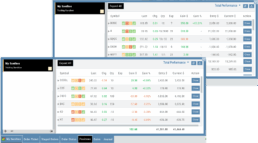
Trading Sandbox Account - Overview
Unlike traditional broker-provided virtual accounts, the Sandbox is not bound by brokerage margin rules or limitations, giving you more freedom to practice and test strategies.
Trading Sandbox Account was built specifically to overcome these shortcomings, allowing traders to:
-
Test advanced strategies without brokerage-imposed limits.
-
Gain confidence in how options positions will behave through expiration and assignment.
-
Track true results on completed trades for more effective learning and analysis.
As with other simulated trading systems, the Sandbox uses delayed market data. However, it goes beyond conventional paper trading platforms in several key areas:
Fast & Reliable Order Execution
Orders are processed quickly during market hours, creating a more realistic trading experience compared to laggy paper trading systems.
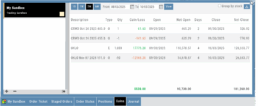
Supports Conditional Orders for Stocks
Effortlessly include Stop and Limit Orders when buying stock.
Options Handling That Works
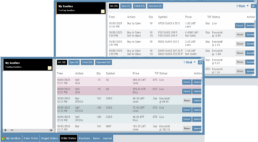
Options are properly assigned and exercised as they would be in a real account, removing the gaps found in most brokerage simulators.
Accurate Trade Capture
The Sandbox records and captures gains/losses on completed trades, giving you a clear picture of how your strategies perform over time.
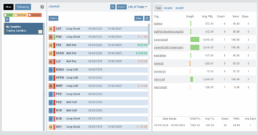
Full Journal Support
When auto-journaled (default setting) is set, all activity is captured. Track your progress to see what strategies work, what needs more practice, for important feedback.
How To Add:
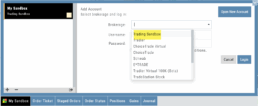
Sandbox has been added as a drop-down selection in the Portfolio section of your trading platform
-
Click the bottom left corner tab of the platform to display all account tabs
-
Click the “+” icon appearing below these tabs
-
Select “Sandbox” from the dropdown list. Check the “I agree…” box
-
Name your account and select a color identifier, if desired.
-
Start trading!
Platform Features Release: New Zoom Functionality, Chart Panning
Announcing the latest Release of feature and functionality additions and enhancements to the trading platform to assist the investment/trading decision process.
New Zoom Functionality
To activate Zoom, click on the Zoom button has been added to the icon toolbar:
- Once activated, the button changes color.
- Click/drag the mouse/cursor over the area of study.
- A “Reset Zoom” button will display when you want to restore the view.
Chart Panning Functionality
Click/drag now pans the time period/price range on the chart – when dragging your mouse/cursor either right/left
Other Additions
- “Choppiness Index” Chart Lower Indictor added
- “Are You Sure You Want To Cancel This Order?” added on Order Status tab
- Clicking on “Quotes By” box (lower right corner) will display source of quotes
Change Log
- Reuse .XSP and .SPX order functionality restored
- Trading Block OTM trade error fixed
- Schwab recognizes BRK.B now
- Resolved Liquidity Range in Screener
Platform Features Release: Trade from the Chart, Price Slices, Reset Virtual Account Options
Announcing the latest Release of feature and functionality enhancements to the trading platform to improve the position evaluation process, trade submitting process as well as offer additional practice account settings:
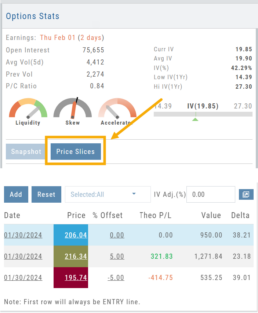
Price Slices: Evaluate theoretical outcomes of option positions when using the Strategy Templates.
Trade from the Chart: Use the control box or lines on Chart to adjust the entry point, Target Price and/or Stop Price.
Reset Virtual Account – Add ‘funds’ to an existing account OR reset everything and start fresh. You decide.
Price Slices (Premium Feature)
The  Button appears on the right side of the screen when using the Strategy Templates.
Select one of the 22 Option Strategy Templates.
Build the position.
Click the Price Slices button to start your evaluation
Change the Date (default ‘today’), Price levels and/or % Offset
Add IV to view how this affects the theoretical P/L
Click the Go Big icon to view additional Greek data
Trade from the Chart
The  button appears at the top of the chart for any symbol – whether there is an existing position or not.
Clicking this button activates an Order Window on the Chart, like this:
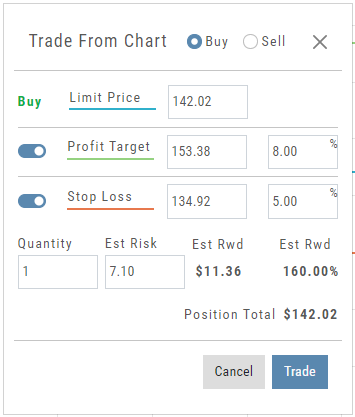
Note: Buy, Profit and Stop Loss line colors will match those displayed on the chart itself.
The values in the Order Window can be manually adjusted by $ or %
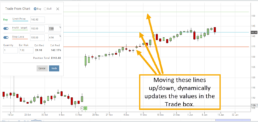
The values can also be dynamically adjusted by moving the corresponding line(s) on the Chart itself.
The Quantity value default is “1” to show the ‘per share’ dollar and percentage estimated risk, reward, as well as Position Total.
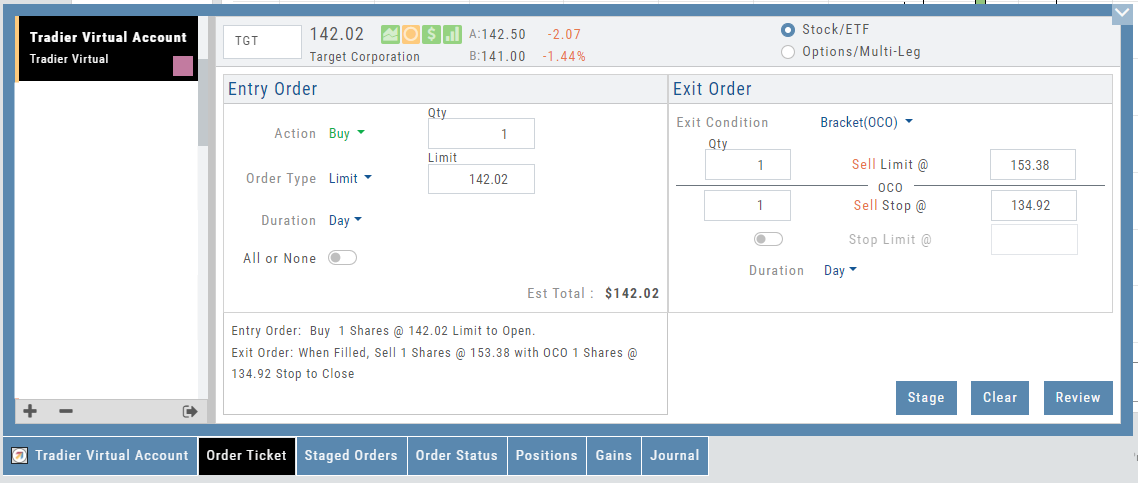
Click “Trade” for the prefilled Order Ticket to display.
The Order Ticket can be further adjusted, Staged or Reviewed to ensure it’s completed to your satisfaction, then Submitted.
Note: The brokerage selected must support Bracket Orders if the Stop/Stop Limit values are selected on the Order Window
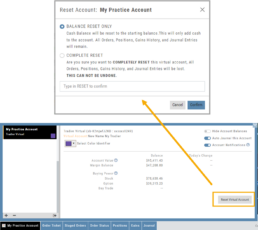
Reset Tradier Virtual Account – 2 options
Tradier’s Virtual Account gives you the ability to add more “Cash” to your practice account – OR – completely start over:
On the account summary page, click “Reset Virtual Account”
Select “Balance Reset Only” – to keep your existing trade activity, but add more “cash” to your virtual account.
Select “Complete Reset” – if you want to remove all prior transactions, including Journal Entries, Gains, Orders, Positions, etc. Note: This selection cannot be undone once it’s processed.
Type RESET in the box provided, then click the “Confirm” button
Enhancements
- ATM Option Strikes are bolded for easier identification
Change Log
- Adjusted theme contrast
- Corrected Order Type Limit price entry
- Snapshot functionality restored
Trade from the Chart
Trade from the Chart
The button appears at the top of the chart for any symbol – whether there is an existing position or not.
Clicking this button activates an Order Window on the Chart, like this:
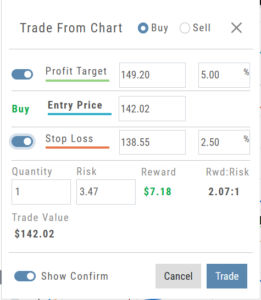
Note: Buy, Profit and Stop Loss line colors will match those displayed on the chart itself.
The values in the Order Window can be manually adjusted by $ or %
The values can also be dynamically adjusted by moving the corresponding line(s) on the Chart itself.
The Quantity value default is “1” to show the ‘per share’ dollar and percentage estimated risk, reward, as well as Position Total.
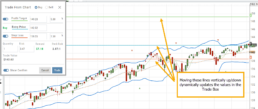
Show Order Status (Go to Order Ticket)
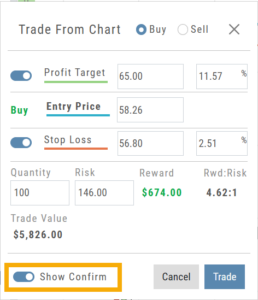
When trading from the Chart (OCO orders), you can elect to Show Confirmation – or not.
Toggling “On” will take you to the Order Ticket to review and submit your Order to the supporting brokerage.
Additional edits and staging the order are enabled with this selection.
Once reviewed and submitted, you’ll get a confirmation that the order was submitted, as shown here:
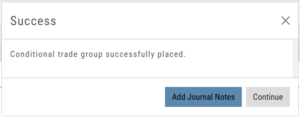
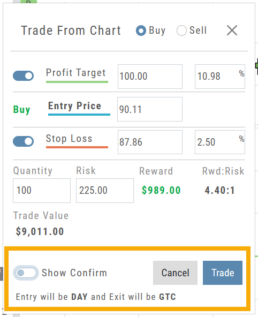
Toggling “Show Confirm” to Off, will bypass the Order Ticket window and convert the “Trade from the Charts” action to an Order Ticket itself.
Notice: The Entry is a Day Order, the Exit is a GTC order
Clicking “Submit” will send the order directly to the supporting brokerage.
Since the “Order Ticket” is bypassed, this order cannot be further edited or Staged.
Once submitted, as with “Show Confirm” activated, you’ll see this notice:
Multiple Position Analysis
We often have more than one position on a particular Stock/ETF, so how can each position, or leg be evaluated?

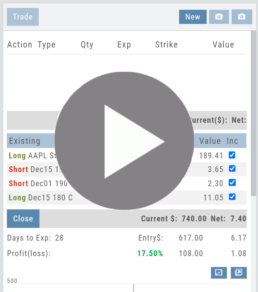
Click the Graphic Below for video on the Option Tab P/L Feature to see how to evaluate individual legs or positions on a Stock/ETF
Option Chain Video
Conditional Orders (OCO)
Conditional Orders Available with Tradier Brokerage
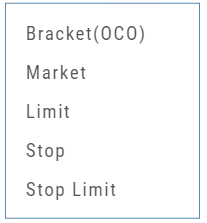 One-Cancels-the-Other (OCO) orders allow two orders to be placed at once, combining a Limit Order and a Stop or Stop/Limit Order. If/when one of the orders gets triggered and is executed, the other order is immediately canceled.
Such orders offer ways to take profits off the table while limiting exposure to losses.
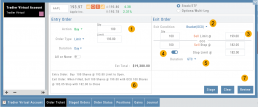
-
- Opening Order OR the existing Position to Close
- Select “Bracket (OCO)”
- If the trade is favorable, the Limit Price will trigger to close and secure profit.
- If the trade is unfavorable, this Stop (or Stop Limit) Order can limit your loss
- Duration: “Day” or “Good Til Canceled”
- Summary of the Bracket-OCO Order
- Review for accuracy, then Submit on the next screen
Platform Features Release: Compare and AI capability added, Tradier Streaming
Join us Wednesday, October 25th for a special Office Hours session for an in-depth review session of the newest enhancements to your platform.
Announcing the latest Release of feature and functionality enhancements to the trading platform with the goal of improving the investment/trading decision process.
Research Tab/Dashboard:
Compare Tab: Provides an at-a-glance comparison of competitors of the same industry group with the ability to change symbols and Swing, Position, or Investor views (also “All” and “Default”)
AI Analysis – AI generated competitive analysis for Large-cap stocks in the same industry group.
Compare Tab
The Compare feature, found under the Research Tab, allows investors to review a particular stock against its industry peers. Different Views offer Investors perspectives with different investment strategies, such as value or growth investing, to identify stocks that align with their preferred strategies within a specific industry.
Some of the Compare benefits include:
- Relative Valuation: Ratios like price-to-earnings (P/E), price-to-sales (P/S), or price-to-book (P/B) can be assessed whether a stock is overvalued or undervalued relative to its peers.
- Identifying Outliers: If a company has significantly different ratios compared to its peers, it may warrant further investigation to reveal potential investment opportunities or risks.
- Industry Trends: Analyzing ratios across an industry can reveal trends and patterns. For example, if the majority of companies in an industry experience a declining profit margin, it may indicate a broader industry challenge or trend.
- Risk Assessment: Comparing key ratios can help assess the financial health and risk profile in an industry context. Companies with lower debt-to-equity ratios, for instance, may be considered less risky, especially if this trend holds across the industry.
- Operational Efficiency: Comparing Ratios like return on equity (ROE) and return on assets (ROA) among industry peers can provide insights into a company’s operational efficiency.
NOTE:
While comparing key ratios within an industry offers valuable insights, it’s VITAL to consider other factors , such as the company’s business model, competitive advantages, management quality, macroeconomic conditions, etc. Ratios should be only part of a broader analysis to make well-informed investment decisions.
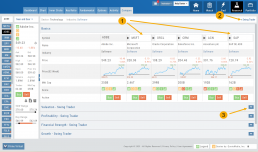
The fields automatically populate with industry peers. They can be changed to compare other symbols of your choice.
AI Analysis
Located within the Activity Tab in Research, Stock AI analysis has the potential to enhance and streamline the process of evaluating and trading stocks in the financial markets.
Stock AI analysis can quickly process and analyze vast amounts of financial data, news, and market sentiment in real-time. This enables investors and traders to make more informed decisions based on a comprehensive view of the market.
Click on the AI Analysis Tab for the current symbol you are viewing. A progress bar will appear while the information loads for the initial session view only. The information will remain even if you log out and back in again during the same Market Day.
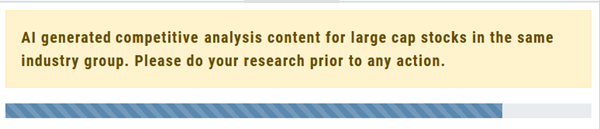
It’s important to note:
While Stock AI analysis offers these benefits, it also comes with challenges and risks, such as overreliance on algorithms, potential biases in data, and the need for continuous monitoring and oversight. Investors and traders should use AI analysis as a tool to complement their decision-making process rather than relying solely on it.
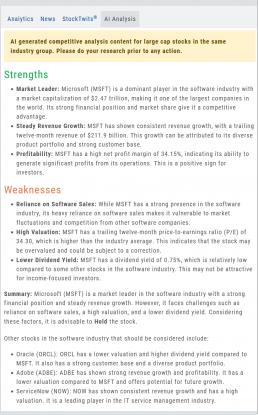
Streaming Quotes with Tradier
Your Tradier Account offers Real-Time Streaming Quotes!
Simply log in to your Tradier account from the platform, and you’ll see the Real-Time quote updates without having to change screens or refresh your browser!

Change Log
- At-the-Money Strike price bolded on Templates
- Long Butterfly template error corrected
- Resolved slider bar/template editing functioning
- Event flag display function preserved
- Slider bar function corrected on template page
Position Notifications
When you Enable and Activate Account Notifications, you’ll receive emails on upcoming activity that may affect your existing positions.
- Upcoming Earnings – Monday Morning via Email
- Upcoming Dividends – Monday Morning via Email
- Option Position Expiring – Two days prior via Email
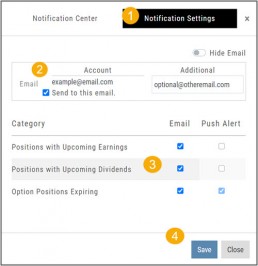
To begin, locate and click on the Envelope Icon at the top of the platform page, next to your Username:

Follow the steps as outlined and illustrated:
- Click on Notification Settings
- Add your email (Optional: Add 2nd email)
- Check/uncheck Categories
- Click “Save”
The settings can be updated at anytime by following the above steps.
Next:
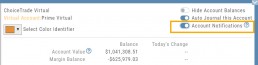
For each account you want to receive notifications on, toggle the switch located on the Account Summary tab to the “On” position as shown in the graphic.
**Without this step, you won’t receive the notifications.**
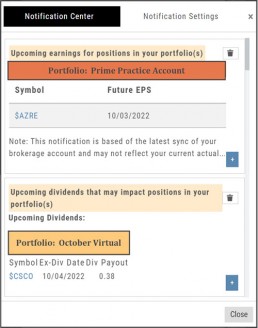
Expiration Notifications will be emailed 2 days in advance.
Each Monday, prior to Market Open, an email will be sent where there’s an Earnings or Dividend for any of the positions in the account(s) you have activated.
The Notification Center will list what has been emailed to you for each account you have activated.
The Account Name and associated Color Tag will be displayed on each Notification and allows for quick identification.